Do the simple calculation
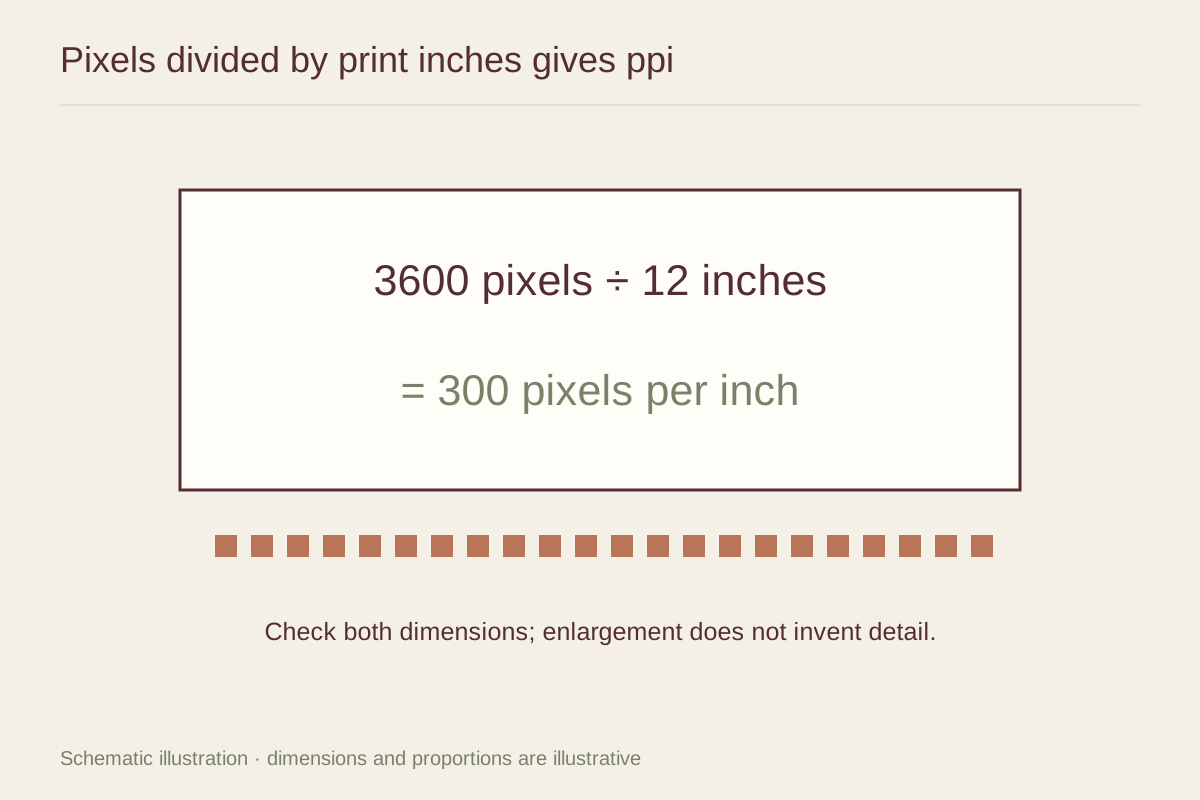
Divide the number of pixels along one edge by the intended printed inches along that edge. A 3000 by 2400 pixel image printed at 10 by 8 inches provides 300 pixels per inch in both directions. Printed at 20 by 16 inches, the same file provides 150 pixels per inch. Nothing in the original image has become more detailed; the pixels are spread over a larger area.
Use the dimensions after cropping. If a portrait has been cut from a larger group photograph, the original camera file's pixel count no longer describes the cropped image. Check the exported file that will actually be sent to the printer, not just the source file in the photo library.
Distinguish metadata from image detail
Changing a resolution field without resampling does not add pixels. It changes how the existing pixels map to physical dimensions. Resampling creates or removes pixels, but adding pixels cannot recover detail that the camera never captured. It may produce a more acceptable enlargement in some cases, which still needs visual inspection.
The printer's dots per inch specification is a different measure from the image's pixels per inch. You do not need to match a printer's advertised dot count to your file's pixel count. Ask the print service for its image-resolution guidance at the specific output size and process.
Inspect image quality as well as the count
A high pixel count can contain blur, motion, heavy noise reduction, or compression damage. Look at the important areas at a useful magnification: eyes, fine text, edges of buildings, or small branches. A technically large image may still look soft if the focus missed the subject.
Do not judge only at extreme zoom. Every image eventually looks imperfect when enlarged far beyond its intended viewing scale. A test print or a crop printed at the final scale is a better way to decide whether the softness will matter on the wall. Inspect from both close range and the normal viewing distance.
Choose a size that fits the file
Around 300 ppi is a common target for closely viewed photographic prints, but it is not a universal pass-or-fail threshold. Large images viewed from farther away can tolerate less fine detail, while small text or intricate linework may demand more care. Follow the supplier's requirements and use a proof for uncertain cases.
If the file is limited, a smaller image inside a generous mat can be preferable to an enlargement that looks weak. Alternatively, preserve a less aggressive crop so more pixels remain available. These choices change the presentation without pretending that a resolution setting can manufacture missing detail.
Avoid accidental low-resolution copies
Images downloaded from messages, social posts, or preview galleries may have been reduced. Find the original camera export or the licensed full-size artwork file when possible. A screenshot of a photograph is rarely the best source, even if it looks fine on a phone. Check both the dimensions and the supplier's permitted printing use.
After exporting, reopen the delivered file and confirm its size, crop, orientation, and appearance. Some export settings resize images automatically. Keeping an original master and a separate print copy makes it easier to repeat the process without degrading the only version you have.
Ask for a meaningful proof
For a large print, request a section at the intended final scale that includes the most demanding detail. A reduced proof of the whole image is useful for composition and color, but it cannot show the exact sharpness of a much larger final print. State which question the proof should answer before paying for it.
If the test looks acceptable from the intended distance, record the file and size used. If it does not, change the crop, output size, or source image. That decision is more reliable than chasing a larger numerical resolution while the visible result remains unchanged.