Begin with brightness
A very bright screen can make an image look luminous even when its shadow values are dark. The resulting print may seem unexpectedly heavy. Before making large edits, view the file on a reasonably adjusted display in ordinary light rather than on a phone at maximum brightness in a dark room.
Do not compensate by brightening every image automatically. The amount needed depends on the file, display, printer, paper, and viewing light. If the print is important, use a small proof and make a considered revision from that evidence. A guessed universal correction can wash out an image that would otherwise print well.
Expect materials to affect appearance
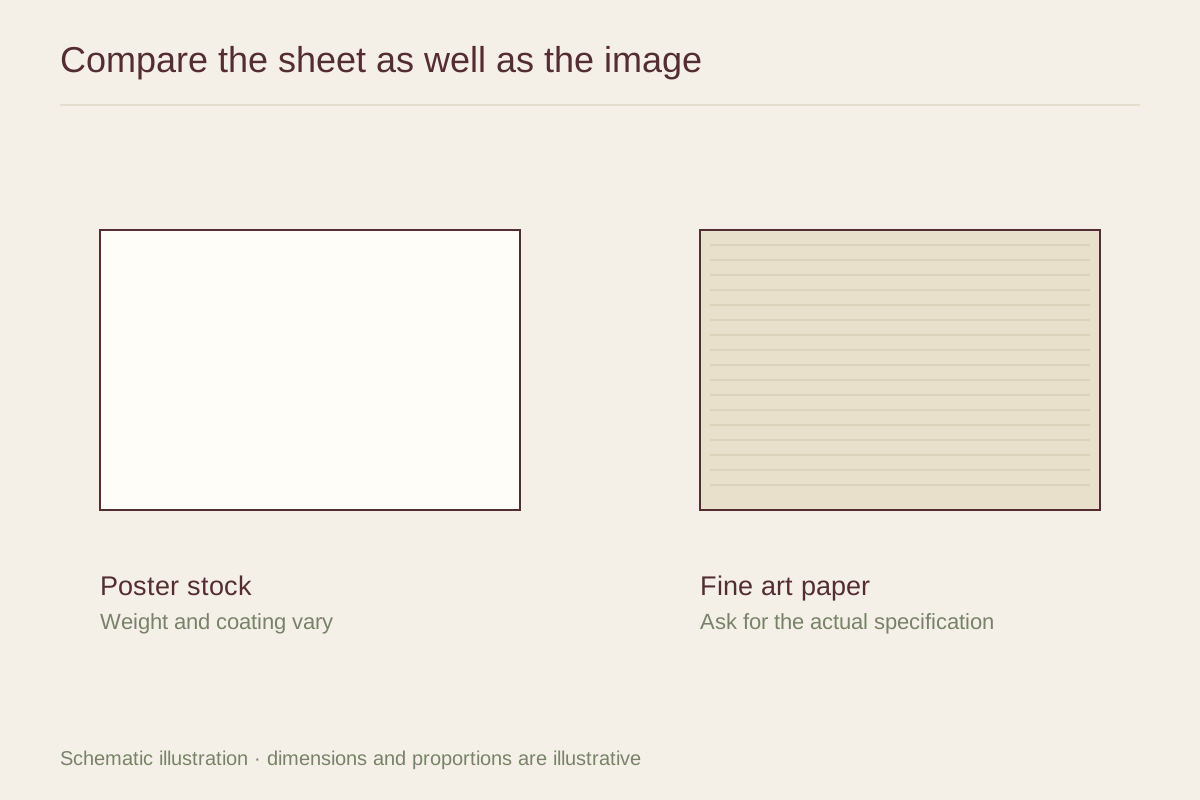
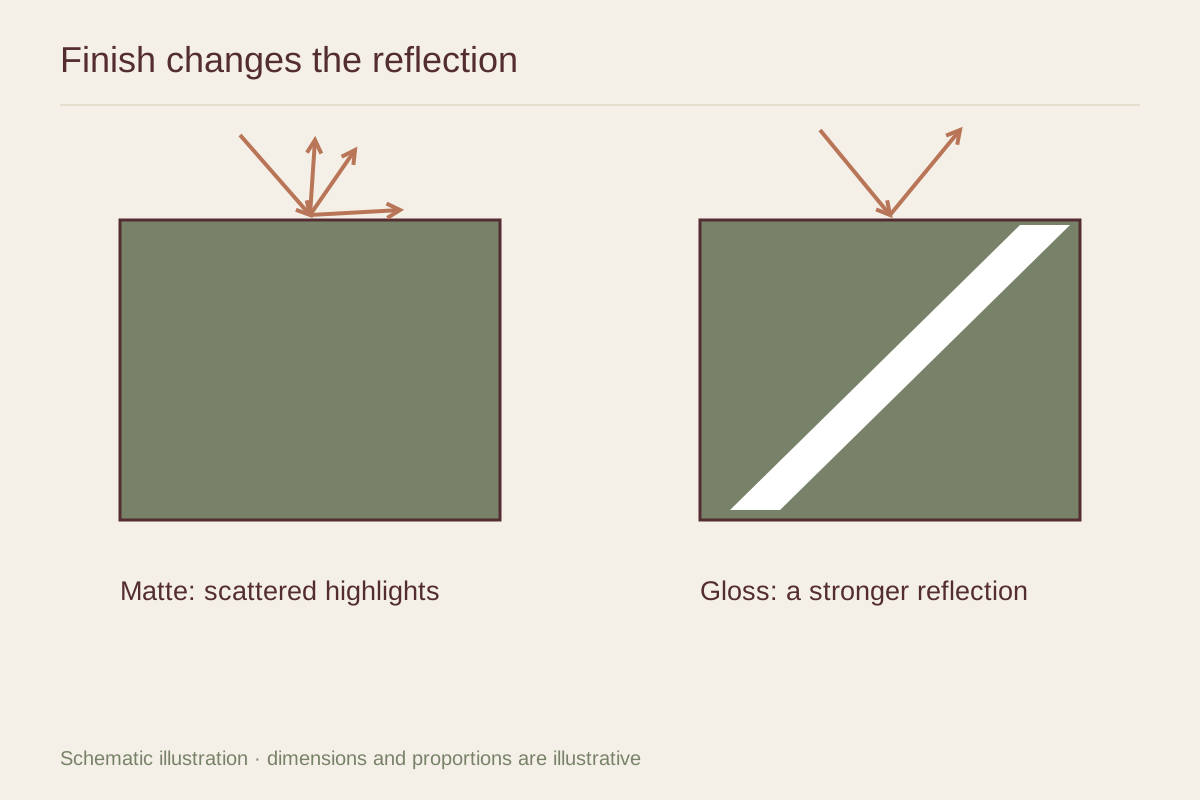
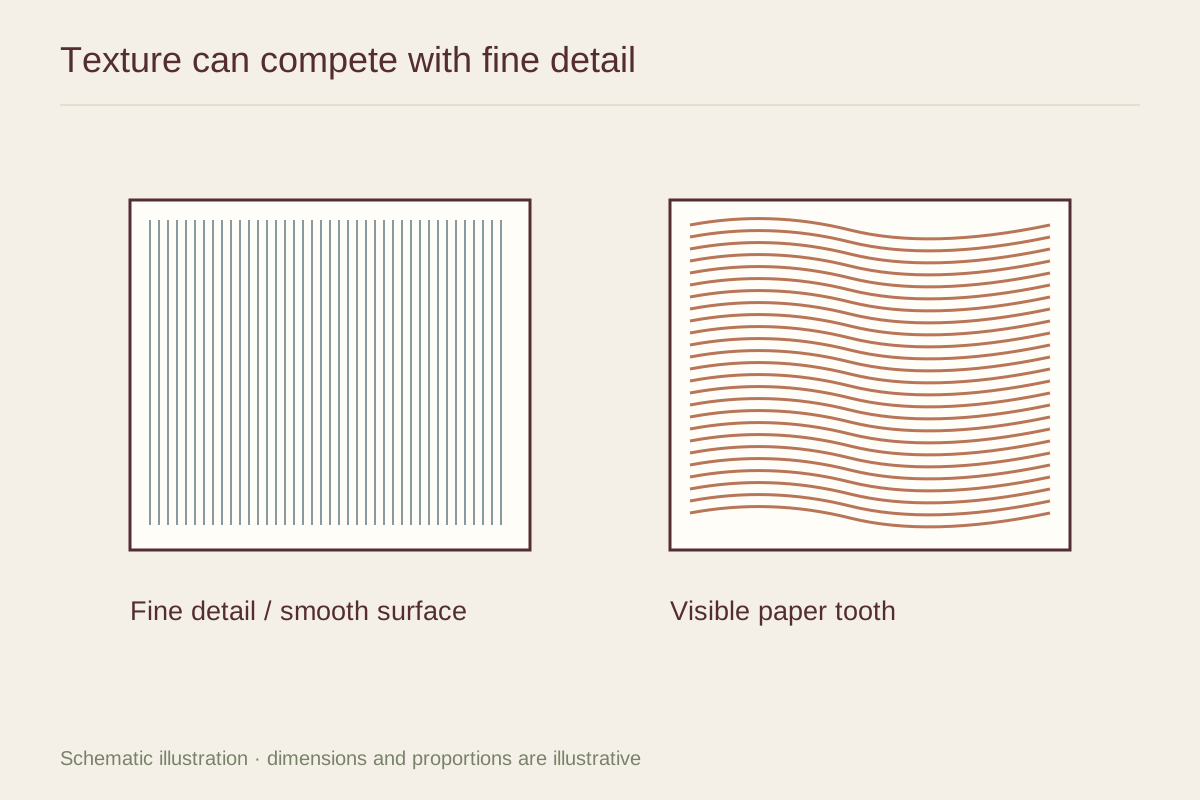
The paper's white tone becomes the lightest available background for many print processes. A cream sheet and a bright white sheet can therefore give the same file different appearances. Surface sheen also affects how dark tones and reflections are perceived. Compare papers with the image itself rather than treating paper selection as a later packaging choice.
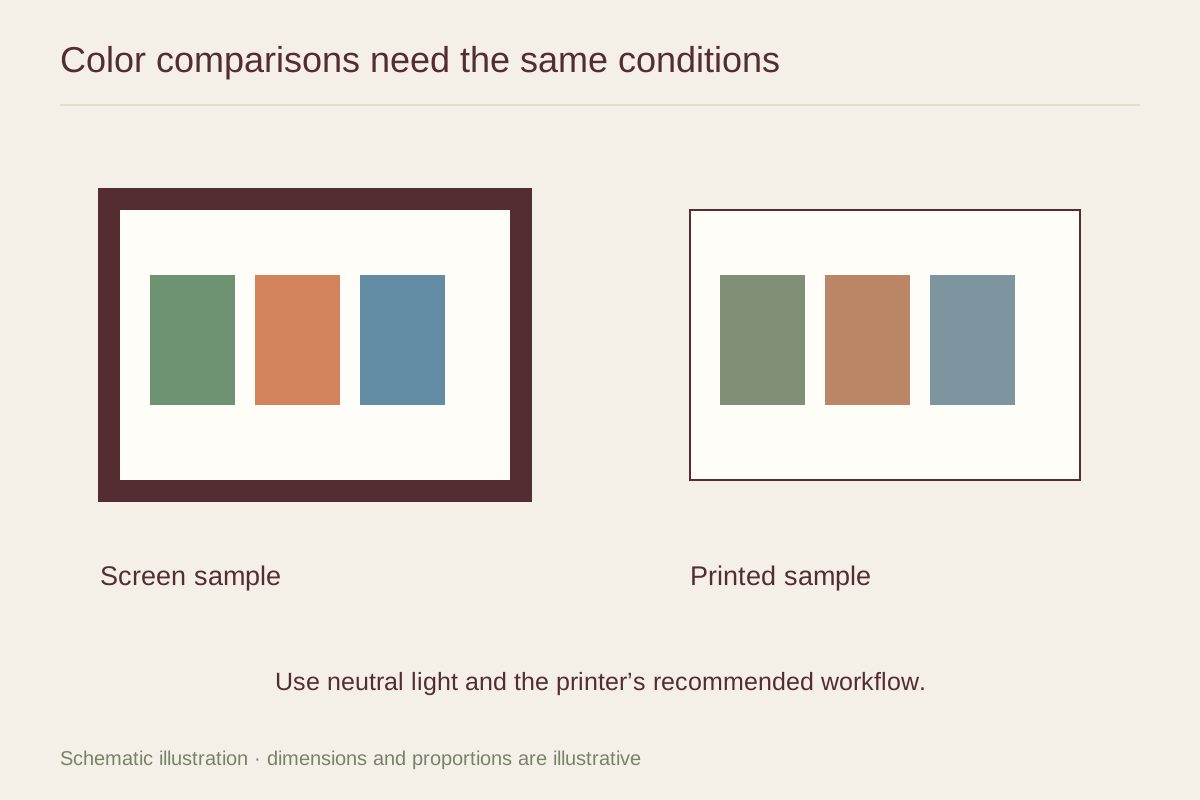
Some saturated screen colors cannot be reproduced in the same way by a particular printer and paper combination. A vivid blue or green may shift or lose intensity. This does not necessarily mean the printer is defective. Ask what color-managed workflow the service uses and whether it can provide a proof for the colors you care about.
Follow one coherent color workflow
If a print service requests a particular color space or embedded profile, follow its instructions. Do not convert a file to CMYK simply because printing is involved; many photographic services request RGB files and handle the final conversion. The correct submission format is the one specified for that service and product.
For printing at home, application and printer settings need to agree about which part manages color. Applying conflicting adjustments can produce poor results. Use the printer manufacturer's instructions for the actual software and paper profile rather than copying a setting from an unrelated printer. Keep a note of the successful combination for future orders.
Use soft proofing for questions it can answer
A soft proof uses a profile to simulate aspects of the output on a display. It can help reveal likely shifts and guide adjustments when the display and workflow are properly managed. It cannot make the screen physically become the selected paper or reproduce every surface reflection in the room.
A calibrated display makes the process more consistent, but a physical proof remains useful for important work. If you are ordering one family photograph, it may be more sensible to compare a modest test print than to build a complex color-management setup. Match the effort to the significance and scale of the job.
View the proof in a fair setting
Evaluate a print under steady, appropriate illumination, not under a colored accent bulb or in deep shadow. Let your eyes adapt before comparing subtle tones. Also look at it in the room where it will hang, since that is the experience you are ultimately choosing.
Record what seems wrong in concrete terms: skin looks too warm, dark leaves merge, or a pale wall loses detail. Those observations are more actionable than saying the print is dull. Ask the printer which adjustment would address the specific issue and whether the file or paper choice is the likely cause.
Approve an appearance you can repeat
Keep the approved file, paper name, print size, and order details together. If you are making a pair, order both through the same workflow where possible. A later order on a different paper can look noticeably different even when the image file is identical.
The aim is a convincing print under its intended viewing conditions, not a permanent side-by-side match to every screen. Once the physical proof has the color relationships and detail you want, use it as the reference for production. That gives the printer and the owner the same tangible object to discuss.