Separate the finished edge from the extra image
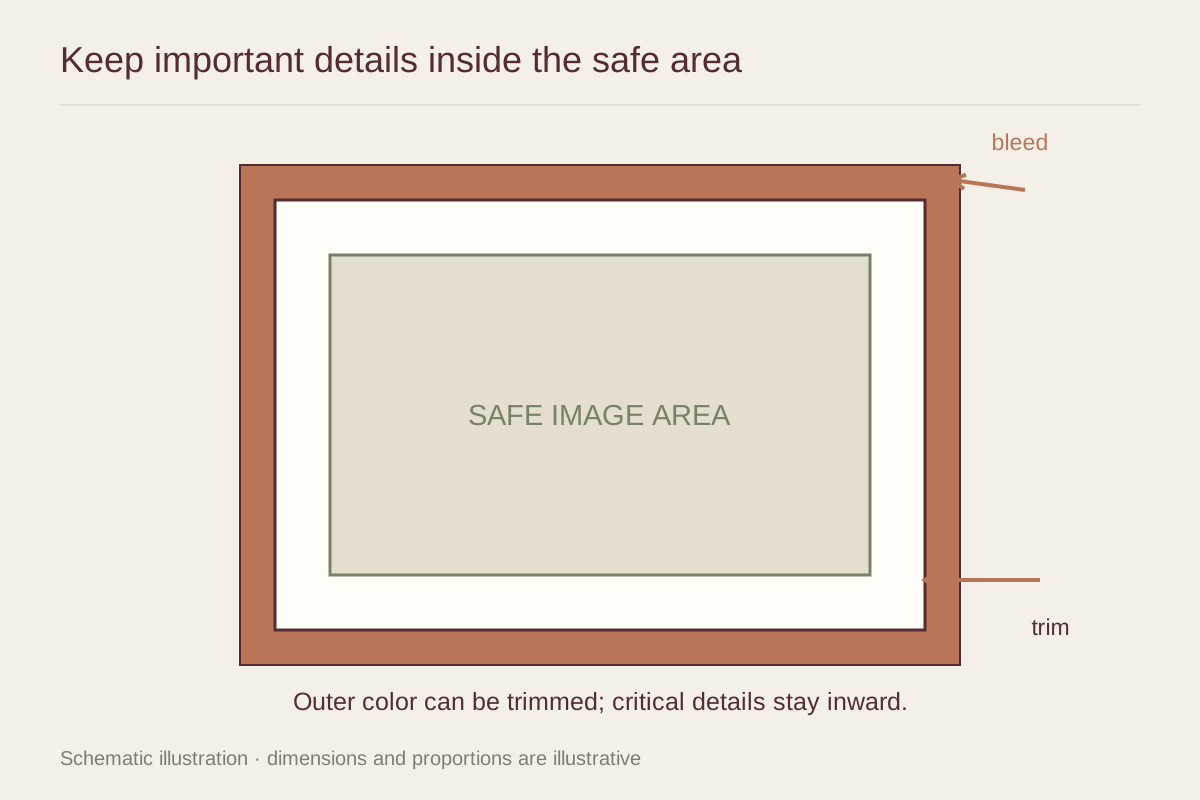
Bleed is artwork extended beyond the intended trim edge so a small cutting variation does not leave an unwanted white strip. That extra area is normally removed. The finished size describes the print after trimming, while the supplied file or production sheet may be larger.
Cropping changes the part of the original image that is included. It may happen because the requested print shape differs from the file's aspect ratio, or because the printer enlarges an image to fill a borderless area. A file can be cropped and also include bleed; the two terms do not mean the same thing.
Compare aspect ratios first
An image with a 3:2 ratio fits a 6 by 4 inch print proportionally. An 8 by 10 inch print has a different shape. Filling that rectangle with the original image requires cutting away some content, while preserving the full image requires unused space or a different size. Stretching the image independently in each direction is not a substitute; it distorts the subject.
Make the crop yourself if the printer permits it and the composition matters. Check faces, hands, architectural edges, horizon lines, captions, and signatures. A centered automatic crop may be mathematically tidy while removing the very detail that makes the photograph work.
Protect important content near the edge
Keep essential details within the safe area specified by the printer. Bleed is expendable image area, so a letter or face placed there is at risk of being trimmed. The exact bleed and safe-area dimensions depend on the supplier and product; use their template instead of importing a number from a different printing job.
A frame or mat may conceal an additional sliver after printing. That is separate from production trimming. If the image has a fine border, even a small overlap can make it appear uneven. Share the planned framing arrangement with the printer or choose a wider printed margin so the visual border is not perched at the final edge.
Read the production preview literally
Look for labels identifying trim, bleed, and safe areas. Some previews show the whole supplied file, including the part that will disappear. Others show only the finished view. If the interface is unclear, request a confirmation image with the boundaries marked and ask which line represents the delivered sheet.
For a canvas wrap, there is another distinction: image on the sides is not visible on the front face. A panorama with important features near both ends needs particular care. Check the front view and side treatment separately rather than assuming that a complete image in the upload preview will appear complete from straight ahead.
Use a proof for unforgiving compositions
A print with typography, a symmetrical border, or an architectural subject can reveal tiny errors more readily than a loose abstract image. A small test or production proof is useful before ordering a large version. Review it with the intended final dimensions written down so you do not confuse an image-area proof with the finished sheet.
For a group of prints, keep the same border convention unless the variation is deliberate. One file with an added white margin and another printed edge to edge may produce unexpectedly different image scales inside identical frames. Specify both the picture size and the overall sheet size where the supplier allows it.
Save the approved version
Keep the original image untouched and save the print-ready crop as a separate file. Name it with the intended size and supplier if that helps distinguish it. Retain the approval preview as well. If a later order looks different, you can compare the actual crop and production instructions instead of trying to reconstruct what happened from memory.
Once the print arrives, inspect its edges before framing. If important content has been lost, contact the printer with the approved preview. Cutting the sheet again to make it appear balanced usually compounds the problem and can remove the evidence needed to explain the mismatch.